Delivery Detail
View the complete details of a delivery note including header information, all line items with batch and serial tracking, carrier details, financial totals, and the current workflow status. From this page you can confirm the delivery to commit inventory movement, cancel it, or initiate a customer return.
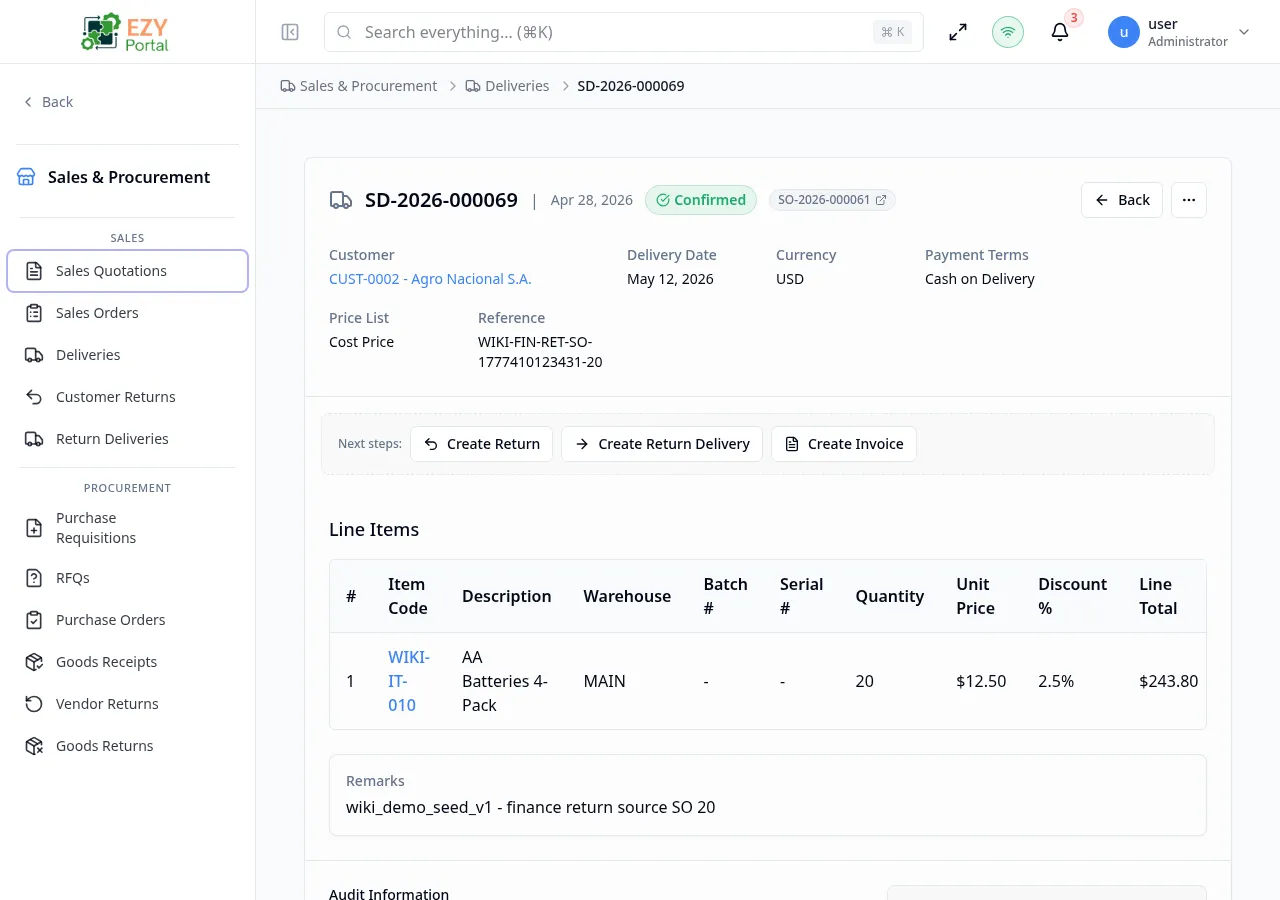
Accessing the Page
Section titled “Accessing the Page”From the Deliveries list, click any row, or navigate directly to /commerce/sales/deliveries/:id.
Header / Action Bar
Section titled “Header / Action Bar”| Button | Description | Available When |
|---|---|---|
| Back | Return to the Deliveries list | Always |
| History | Open the document change history dialog | Always |
| Edit | Open the Edit Delivery form | Draft only |
| Duplicate | Create a copy as a new Draft | Always |
| Delete | Delete the delivery after confirmation | Draft only |
| Confirm | Transition Draft → Confirmed; commits inventory | Draft |
| Cancel | Transition Draft → Cancelled (requires reason) | Draft |
| Create Return | Open the Create Return from Delivery dialog | Confirmed |
| Create Invoice | Shortcut to A/R invoice creation | Confirmed |
| Export PDF | Download the delivery as a PDF | Always (if configured) |
Summary Card
Section titled “Summary Card”| Field | Description |
|---|---|
| Document Number | System-generated delivery number |
| Status | Current status badge |
| Customer | Business partner name and code |
| Date | Document date |
| Delivery Date | Actual or planned delivery date |
| Carrier | Shipping carrier |
| Tracking # | Carrier tracking number |
| Currency | Transaction currency |
| Sales Person | Assigned sales person |
| Payment Terms | Payment terms |
| Price List | Applied price list |
| Contact | Customer contact |
| Billing Address | Billing address label |
| Shipping Address | Shipping address label |
| Reference | External reference |
| Remarks | Delivery remarks |
Line Items
Section titled “Line Items”| Column | Description |
|---|---|
| # | Line number |
| Item | Item code and name |
| Description | Line description |
| Warehouse | Source warehouse |
| Batch # | Batch number (if applicable) |
| Serial # | Serial number (if applicable) |
| Qty | Delivered quantity |
| Unit Price | Price per unit (may be masked) |
| Disc % | Line discount |
| Tax Category | Tax category |
| Tax Amount | Tax amount (may be masked) |
| Line Total | Line total (may be masked) |
Document Totals
Section titled “Document Totals”| Field | Description |
|---|---|
| Total Quantity | Sum of all line quantities |
| Subtotal | Sum of line totals before document discount |
| Discount | Document-level discount amount |
| Tax | Total tax |
| Grand Total | Final total including tax and discount |
Workflow States
Section titled “Workflow States”graph LR
DRAFT -->|Confirm| CONFIRMED
DRAFT -->|Cancel| CANCELLED
Confirming a delivery is a terminal action — the inventory movement is committed and the line quantities are locked.
Deleting a Delivery
Section titled “Deleting a Delivery”- Verify the delivery is in Draft status.
- Click Delete in the action bar.
- Confirm the permanent deletion in the dialog.
- You are redirected to the Deliveries list.
Business Rule Notes
Section titled “Business Rule Notes”- Confirming a delivery commits inventory movement. Line quantities cannot be edited after confirmation.
- Cancellation requires a written reason and is irreversible.
- The Create Return action opens a dialog to select lines and quantities to return, creating a Customer Return document.
Common tasks
Section titled “Common tasks”- Open the page from the Deliveries list.
- Review carrier details and line items.
- Click Confirm to commit the delivery and update inventory.
Related Pages
Section titled “Related Pages”- Deliveries — List all deliveries
- Create Delivery — Create a new delivery
- Edit Delivery — Edit a draft delivery
- Customer Returns — Returns created from this delivery