Create Purchase Requisition
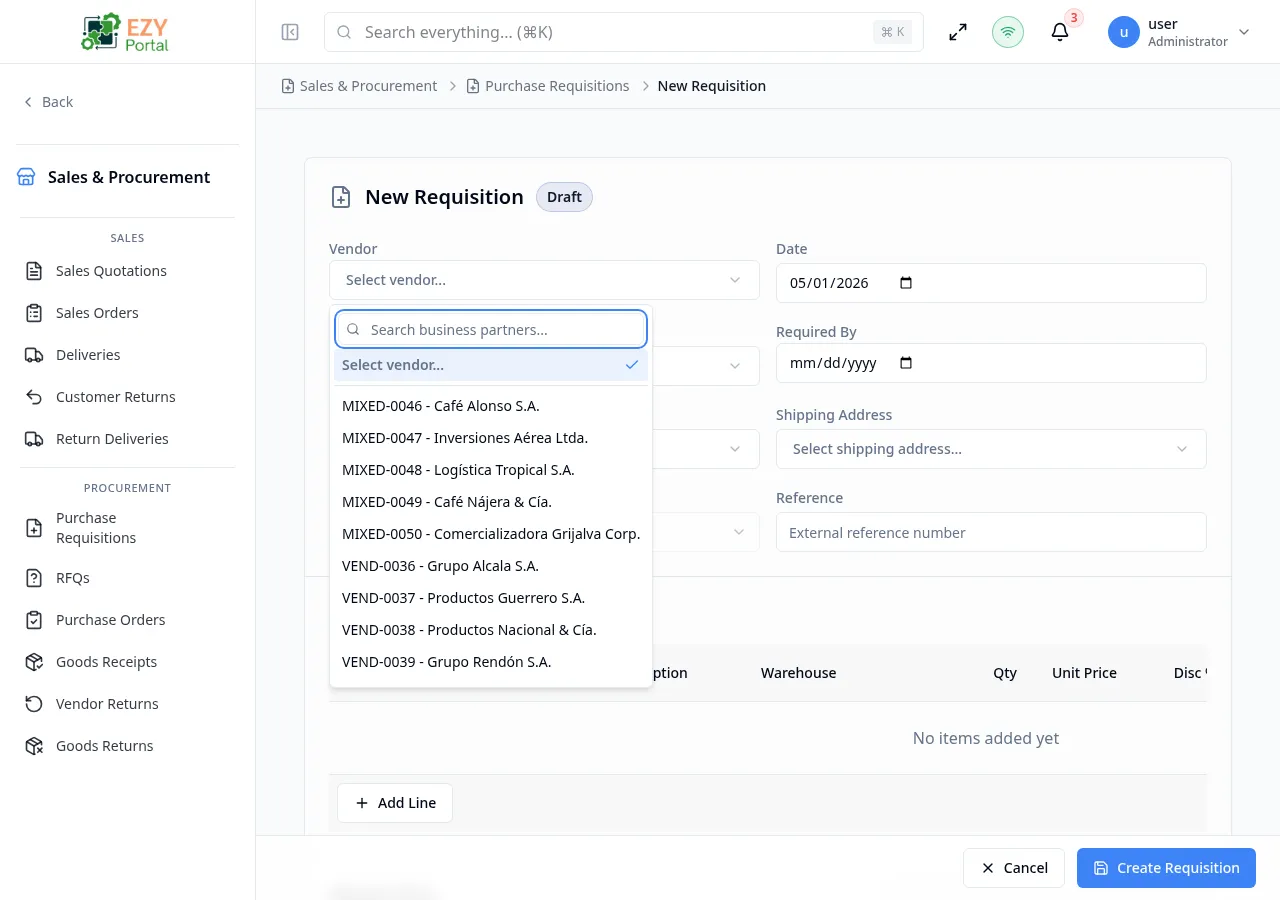
Create a new purchase requisition to request authorization for a purchase. The form opens as a full-page document editor. After approval, the PR can be used to generate Requests for Quotation (RFQs) and Purchase Orders (POs).
This page is currently DEV-gated and only visible in development environments.
Accessing the Page
Section titled “Accessing the Page”From the Purchase Requisitions list, click New Requisition, or navigate directly to /commerce/procurement/requisitions/new.
Form Overview
Section titled “Form Overview”| Section | Description |
|---|---|
| Document Header | Vendor (optional), dates, requester, addresses, and reference fields |
| Line Items | Editable table of items being requested |
A footer bar contains the Create Requisition and Cancel buttons.
Document Header Fields
Section titled “Document Header Fields”| Field | Required | Type | Description | Default | Validation |
|---|---|---|---|---|---|
| Vendor | No | Entity select | Preferred vendor (optional at creation) | — | Partner on hold blocks submission if selected |
| Date | Yes | Date | Document date | Today | — |
| Required By | No | Date | Date by which goods are needed | — | — |
| Currency | Yes | Select | Document currency | Company default | — |
| Payment Terms | No | Entity select | Payment terms | Vendor default if vendor selected | — |
| Price List | No | Entity select | Price list | Vendor default if vendor selected | — |
| Contact | No | Entity select | Vendor contact person | — | — |
| Billing Address | No | Entity select | Billing address | — | — |
| Shipping Address | No | Entity select | Shipping/delivery address | — | — |
| Requester | No | User select | User submitting the requisition | — | Active users only |
| Reference | No | Text | External reference number | — | — |
| Remarks | No | Textarea | Remarks | — | — |
| Disc % | No | Number | Document-level discount | 0 | 0–100 |
Line Items
Section titled “Line Items”| Column | Required | Description | Validation |
|---|---|---|---|
| Item | Yes | Item code | Must select an item |
| Description | No | Line description | — |
| Warehouse | Yes | Destination warehouse | Must select a warehouse |
| Qty | Yes | Quantity requested | Must be greater than 0 |
| Unit Price | Yes | Estimated unit price | — |
| Disc % | No | Line discount | 0–100 |
| Tax Category | Yes | Tax category | Must select a tax category |
| Tax Amount | — | Computed tax | Read-only |
| Price After Disc. | — | Price after discount | Read-only |
| Line Total | — | Computed total | Read-only |
Validation Rules
Section titled “Validation Rules”| Rule | Behavior |
|---|---|
| At least one line | Submission blocked if no line items exist |
| Quantity positive | Each line must have a quantity greater than 0 |
| Warehouse required per line | Each line must have a warehouse selected |
| Tax category required per line | Each line must have a tax category selected |
| Vendor on hold | Submission blocked if the selected vendor is on hold |
Post-save Behavior
Section titled “Post-save Behavior”After creation:
- The PR is saved with status Draft.
- You are redirected to the Purchase Requisition Detail page.
- A success notification confirms creation with the document number.
Common tasks
Section titled “Common tasks”- Click New Requisition from the Purchase Requisitions list.
- Set the Required By date and add a Requester.
- Add line items with item code and estimated quantity.
- Click Create Requisition to save the draft.
Permissions & system behavior
Section titled “Permissions & system behavior”- Creating PRs requires Write permission.
- After creation, the PR must be approved before it can be used to create RFQs or POs.
Related Pages
Section titled “Related Pages”- Purchase Requisitions — List all PRs
- Purchase Requisition Detail — View and approve a PR
- Edit Purchase Requisition — Edit a draft PR
- Requests for Quotation — RFQs sourced from approved PRs