Create A/R Credit Memo
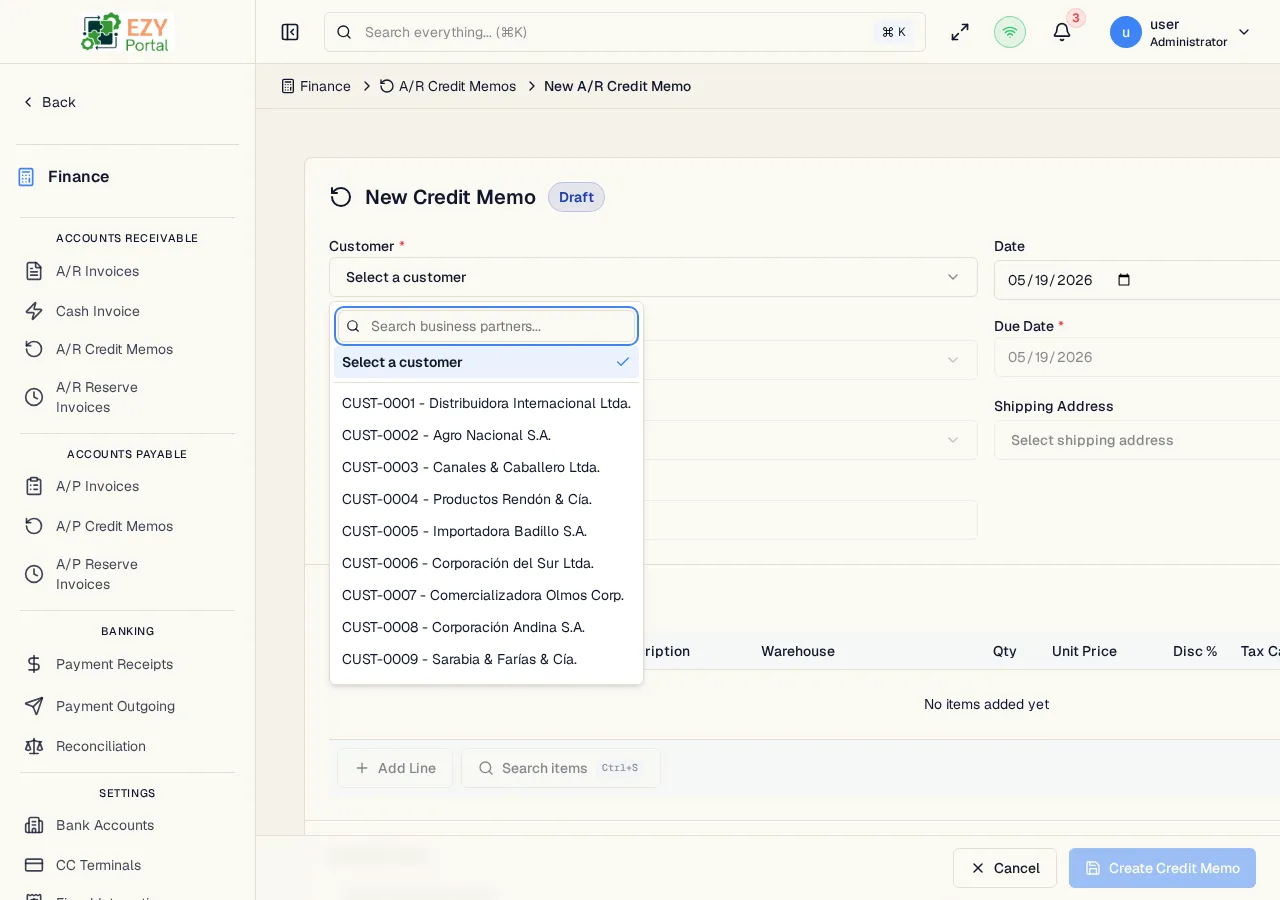
Create an A/R Credit Memo to reduce or reverse an amount owed on a customer account. Credit memos can be created standalone, from a specific A/R Invoice (with line-level quantity selection), or from a Commerce return document.
Accessing the Page
Section titled “Accessing the Page”From the A/R Credit Memos list, click New Credit Memo, or navigate to /finance/ar/credit-memos/new.
To create from an existing invoice, click New from Invoice on the list page and select the source invoice from the search dialog. To create from a return document, click New from Return or New from Return Delivery.
Form Overview
Section titled “Form Overview”| Area | Description |
|---|---|
| Document Header | Customer, date, due date, contact, addresses, currency, source invoice reference |
| Line Items | Editable table of items, quantities, prices, taxes, and warehouses |
| Document Footer | Payment terms (optional), price list, remarks, and totals |
| Button | Behavior |
|---|---|
| Create Credit Memo | Validate and submit the form |
| Cancel | Discard and return to the list |
Document Header Fields
Section titled “Document Header Fields”| Field | Required | Type | Description | Default | Validation |
|---|---|---|---|---|---|
| Customer | Yes | Entity select | Active customer business partner | — | Locked if credit memo is tied to a source invoice |
| Document Date | Yes | Date | Credit memo date | Today | — |
| Due Date | No | Date | Date by which the credit should be applied | — | Cannot be before document date |
| Contact | No | Entity select | Contact person from the selected customer | — | Filtered to active contacts |
| Billing Address | No | Entity select | Billing address from the selected customer | — | Filtered to billing-type addresses |
| Shipping Address | No | Entity select | Shipping address from the selected customer | — | Filtered to shipping-type addresses |
| Currency | Yes | Select | Transaction currency | Customer or source invoice default | Locked if tied to a source invoice |
| Reference | No | Text | External reference number | — | — |
| Source Invoice | No | Read-only | The A/R Invoice this memo is linked to (set automatically when created from an invoice) | — | — |
Line Items
Section titled “Line Items”| Field | Required | Type | Description | Default | Validation |
|---|---|---|---|---|---|
| Item | Yes | Entity select | Item from the product catalog | — | Must be a valid item code |
| Description | No | Text | Line description | Item name | — |
| Quantity | Yes | Number | Quantity being credited | — | Must be > 0; cannot exceed remaining creditable quantity from source invoice |
| Unit Price | Yes | Number | Credit price per unit | From source invoice line | Min 0 |
| Disc % | No | Number | Line discount percentage | 0 | 0–100 |
| Tax Category | Yes | Entity select | Tax category for the line | — | Required |
| Warehouse | Yes | Entity select | Warehouse for the line | — | Required |
| Notes | No | Text | Line-level notes | — | — |
When the credit memo is linked to a source invoice, quantities are validated in real-time against the remaining creditable quantity per line.
Document Footer Fields
Section titled “Document Footer Fields”| Field | Required | Type | Description | Default | Validation |
|---|---|---|---|---|---|
| Payment Terms | No | Entity select | Payment terms (optional for credit memos) | From source invoice | — |
| Price List | Yes | Entity select | Price list for pricing | From source invoice or customer default | — |
| Remarks | No | Textarea | Free-text notes on the document | — | — |
Validation Rules
Section titled “Validation Rules”| Rule | Behavior |
|---|---|
| Customer required | Cannot submit without a customer |
| Price List required | Cannot submit without a price list |
| At least one line required | Cannot submit with an empty lines table |
| Quantity > 0 | All line quantities must be positive |
| Quantity ≤ remaining | When linked to a source invoice, quantity cannot exceed remaining creditable quantity |
| Tax Category required | Each line must have a tax category |
| Warehouse required | Each line must have a warehouse |
| Customer locked when from invoice | Customer and currency cannot be changed if the memo is tied to a source invoice |
| Stocked-item credit lines require a Customer Return or Return Delivery source | Stocked lines must originate from the matching return document before they can be posted |
Post-save behavior
Section titled “Post-save behavior”After successful creation the credit memo is assigned a document number with Draft status and you are redirected to the A/R Credit Memo Detail page.
From-Invoice Flow
Section titled “From-Invoice Flow”When using New from Invoice:
- Select an eligible posted invoice from the search dialog
- A Line Picker dialog shows all invoice lines with their remaining creditable quantities
- Select lines and enter the quantities to credit
- Confirm — the credit memo is created with header data inherited from the source invoice
From-Commerce Flow
Section titled “From-Commerce Flow”When using New from Return or New from Return Delivery:
- Select the source document from the search dialog
- A Line Picker shows lines with remaining creditable quantities from the return
- Select lines, confirm — the credit memo is created immediately
Common tasks
Section titled “Common tasks”- From the A/R Credit Memos list, click New from Invoice.
- Select the relevant posted invoice and choose the lines and quantities to credit.
- Confirm — the credit memo is created in Draft status.
Permissions & system behavior
Section titled “Permissions & system behavior”- Creating credit memos requires the
canCreateARCreditMemopermission.
Related Pages
Section titled “Related Pages”- A/R Credit Memos — List all credit memos
- A/R Credit Memo Detail — View and post a credit memo
- A/R Invoices — Source invoices for credit memos