A/R Reserve Invoices
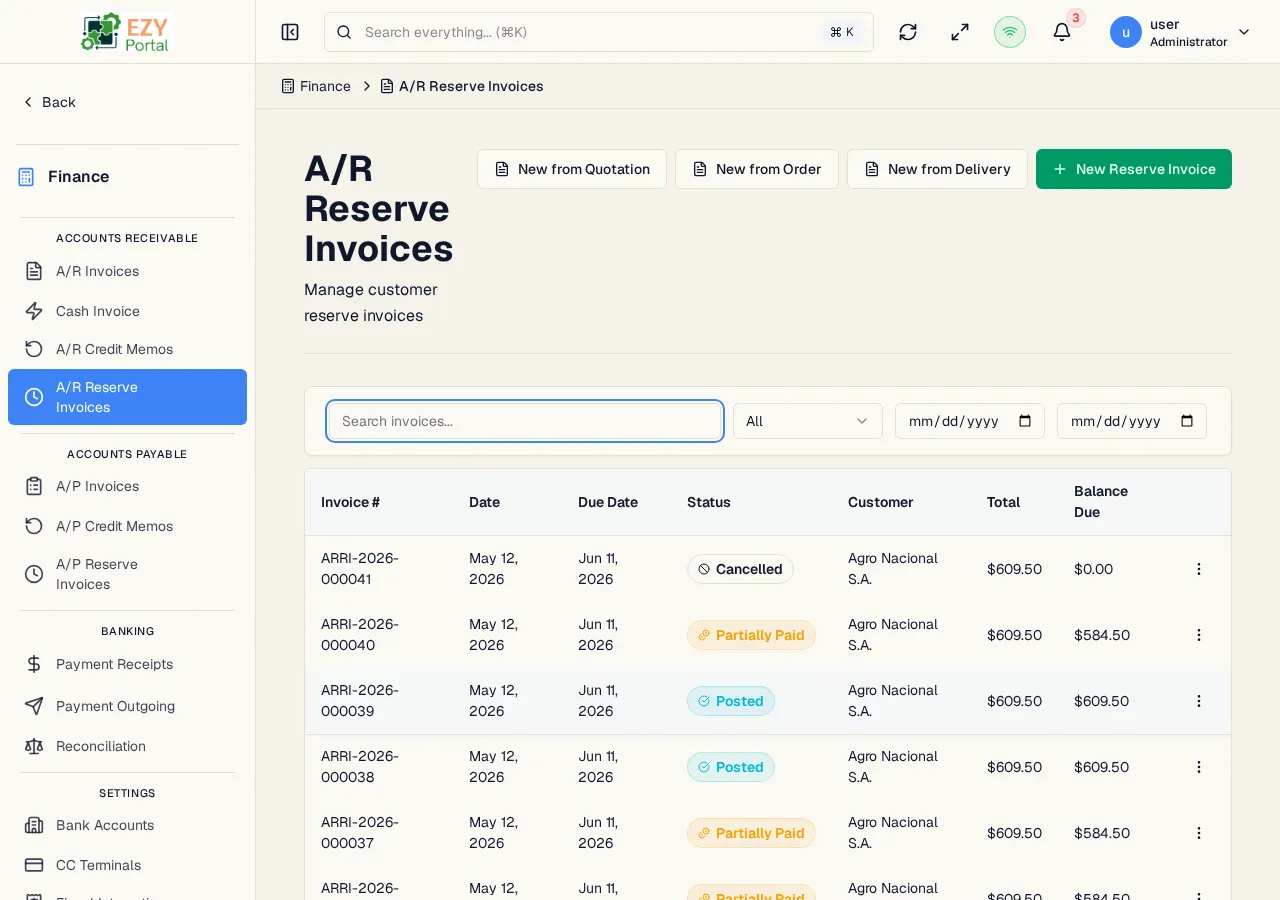
The A/R Reserve Invoices list shows all reserve invoice documents — accounts receivable invoices created in advance of a commerce fulfillment (a Sales Quote, Sales Order, or standalone), against which delivered quantities will draw down over time. A reserve invoice posts revenue and customer exposure up front while tracking how much remains uninvoiced as deliveries occur.
Accessing the Page
Section titled “Accessing the Page”Navigate to Finance → Accounts Receivable → A/R Reserve Invoices in the sidebar, or go to /finance/ar/reserve-invoices.
List Columns
Section titled “List Columns”| Column | Default Visible | Sortable | Description |
|---|---|---|---|
| Doc # | Yes | Yes | System-assigned document number |
| Date | Yes | Yes | Document date |
| Due Date | Yes | Yes | Payment due date |
| Status | Yes | Yes | Status badge |
| Customer | Yes | Yes | Business partner name |
| Total | Yes | Yes | Grand total amount |
| Balance Due | Yes | Yes | Remaining unpaid balance |
Status Values
Section titled “Status Values”graph LR
DRAFT -->|Post| POSTED
POSTED -->|Partial payment| PARTIALLY_PAID
POSTED -->|Full payment| PAID
POSTED -->|Credit memo applied| PARTIALLY_CREDITED
POSTED -->|Fully credited| CREDITED
POSTED -->|Cancel| CANCELLED
PARTIALLY_PAID -->|Full payment| PAID
PAID --> CLOSED
| Status | Description |
|---|---|
| Draft | Reserve invoice is being prepared; not yet posted |
| Posted | Reserve is posted; revenue and exposure are recognized |
| Partially Paid | One or more receipts have been applied but the balance is not zero |
| Paid | The reserve balance is fully settled |
| Partially Credited | A credit memo has offset part of the reserve |
| Credited | The reserve has been fully offset by credit memos |
| Closed | The reserve is fully settled (paid + credited) and tracked complete |
| Cancelled | The reserve has been cancelled |
Filtering
Section titled “Filtering”| Filter | Type | Description |
|---|---|---|
| Search | Free text | Searches by document number or customer name |
| Status | Select | Filter by status |
| Date From / To | Date | Document-date range |
Sorting & Pagination
Section titled “Sorting & Pagination”Sortable columns toggle ascending → descending → remove. Default sort: Created date descending. Load More pattern, 20 records per load.
Actions
Section titled “Actions”Page Actions
Section titled “Page Actions”| Action | Description | Permission |
|---|---|---|
| New from Quotation | Pick an accepted Sales Quotation; the reserve pre-fills from its lines, with line-level source tracking | canCreateARReserveInvoice |
| New from Order | Pick a released Sales Order; the reserve pre-fills from its lines | canCreateARReserveInvoice |
| New Reserve Invoice | Standalone create — no source document | canCreateARReserveInvoice |
Row Actions
Section titled “Row Actions”| Action | Description | Permission |
|---|---|---|
| View | Open the reserve invoice detail page | Any |
| Edit | Edit a Draft reserve | canEditARReserveInvoice |
| Post | Transition Draft → Posted | canPostARReserveInvoice |
| Cancel | Cancel the reserve (reason required when cancelling from Posted) | canPostARReserveInvoice |
| Duplicate | Create a new Draft copy | canCreateARReserveInvoice |
| Download Fiscal PDF | When the reserve has been fiscalized, download the fiscal PDF from the provider | Any |
| Delete | Permanently delete — Draft only | canDeleteARReserveInvoice |
Detail Page
Section titled “Detail Page”The detail page shows:
- Header — Document Number, Date, Reference, Remarks, Due Date.
- Parties — Customer (linked to BP), Contact, Billing Address, Shipping Address.
- Commercial — Currency, Payment Terms, Price List, Sales Person.
- Lines — Item, Description, Quantity, Unit Price, Discount, Tax Category, Tax Amount, Line Total. Each line carries source-document tracking so invoiced quantities can be reconciled against the source.
- Totals — Subtotal, Discount %, Tax, Grand Total, Balance Due.
- Source Document — When created from a Sales Quotation or Sales Order, the source document type, number, and link are displayed.
- Fiscal Data — When fiscal integration is enabled and the document has been fiscalized, the CUFE / fiscal document identifier and a QR code image are displayed; the fiscal PDF can be downloaded from this section.
- Cancelling a Posted A/R Reserve Invoice is blocked once the document has been fiscalized — a credit memo against the reserve is the correct way to reverse it.
- When a receipt or credit memo is applied to a reserve invoice, the document status reflects partial or full settlement automatically. Reversing the receipt or credit memo recomputes the status.
- Per-line tracking keeps an audit-grade record of how much of each reserve line has been invoiced as commerce documents are delivered against it.
- When a reserve invoice is created from a commerce source, the detail page shows a source-document badge linking back to the originating Sales Quotation or Sales Order.
Common tasks
Section titled “Common tasks”- Open the page from the sidebar under Finance → Accounts Receivable.
- Use filters to find reserves by status, customer, or date range.
- Click New from Order to create a reserve invoice against a released Sales Order.
- Post the reserve once the header and lines are correct; track settlement via subsequent receipts.
Related Pages
Section titled “Related Pages”- A/R Invoices — Standard customer invoicing
- A/R Credit Memos — Apply credit adjustments
- Payment Receipts — Record customer payments and apply to reserves
- Fiscal Integration — Provider configuration and fiscal PDF download
- A/P Reserve Invoices — Vendor-side counterpart