Create Receipt
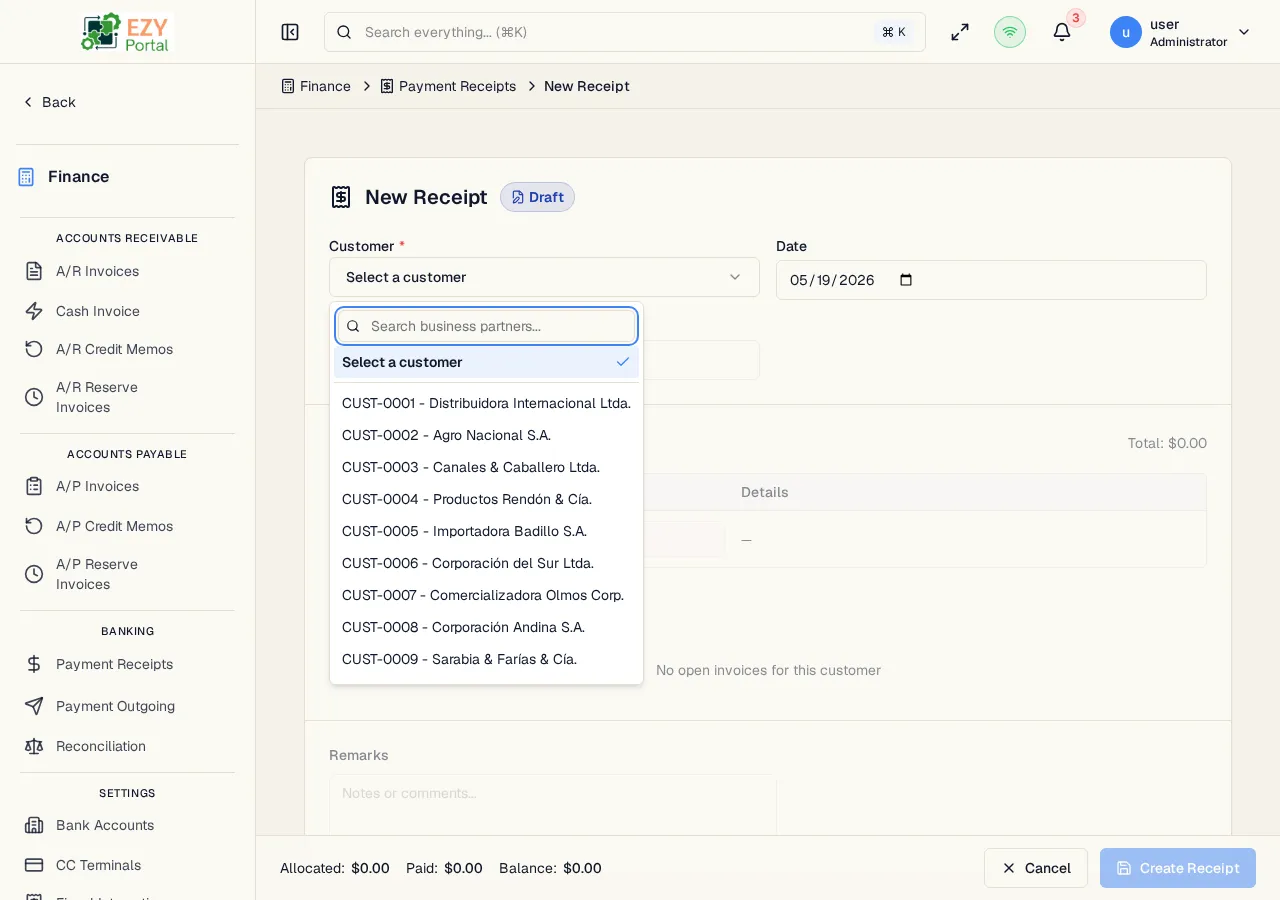
Create a payment receipt to record money received from a customer. The receipt can include multiple payment lines (splitting payment across cash, credit card, bank transfer, or check), and you can allocate the receipt amount directly against open invoices on the same form.
Accessing the Page
Section titled “Accessing the Page”From the Payment Receipts list, click New Receipt, or navigate to /finance/banking/receipts/new.
Form Overview
Section titled “Form Overview”| Area | Description |
|---|---|
| Document Header | Customer, date, currency, reference |
| Payment Lines | One or more payment method lines with amounts |
| Balance Applied | Optional: apply existing on-account balance |
| Allocation Table | Assign receipt amounts to open invoices |
| Remarks | Free-text notes |
The form footer shows a running summary: Allocated, Paid, and Balance (Paid minus Allocated). The balance indicator turns amber if paid > allocated (unapplied balance remains) or red if over-allocated.
| Button | Behavior |
|---|---|
| Create Receipt | Validate and submit the form |
| Cancel | Discard and return to the list |
Document Header Fields
Section titled “Document Header Fields”| Field | Required | Type | Description | Default | Validation |
|---|---|---|---|---|---|
| Customer | Yes | Entity select | Active customer business partner | — | Required; warning if customer has no open invoices |
| Document Date | Yes | Date | Receipt date | Today | — |
| Currency | Yes | Select | Receipt currency | Customer default or tenant default | — |
| Reference | No | Text | External reference (bank reference, check number, etc.) | — | — |
| Remarks | No | Textarea | Free-text notes | — | — |
Payment Lines
Section titled “Payment Lines”At least one payment line is required. Each payment line specifies the method and amount.
| Field | Required | Type | Description | Default | Validation |
|---|---|---|---|---|---|
| Payment Method | Yes | Select | How the payment was received | Bank Transfer | Required |
| Amount | Yes | Number | Amount for this method | — | Must be > 0 |
| Bank Account | Yes (Bank Transfer) | Entity select | Receiving bank account | — | Required when method is Bank Transfer |
| CC Terminal | Yes (Credit Card) | Entity select | Credit card terminal used | — | Required when method is Credit Card |
| Check Number | No (Check) | Text | Check number | — | — |
| CC Last Four | No (Credit Card) | Text | Last four digits of the card | — | — |
| CC Auth Code | No (Credit Card) | Text | Authorization code | — | — |
Payment Method options:
| Method | Description |
|---|---|
| Bank Transfer | Electronic transfer to a configured bank account |
| Cash | Physical cash |
| Check | Payment by check |
| Credit Card | Card transaction through a CC terminal |
Click Add Payment Line to add additional methods. Click the delete icon to remove a line.
Balance Applied (Conditional)
Section titled “Balance Applied (Conditional)”If the selected customer has an existing on-account balance (from previously unapplied receipts), an optional Balance Applied field appears. Enter an amount (up to the available on-account balance) to apply it toward the current allocation. This reduces the net new payment required.
Allocation Table
Section titled “Allocation Table”After selecting a customer, a table of open invoices appears. Enter an amount in the Allocate column for each invoice you wish to apply this receipt to.
| Column | Description |
|---|---|
| Invoice # | Open invoice document number |
| Date | Invoice document date |
| Balance Due | Remaining unpaid balance on the invoice |
| Allocate | Amount to apply from this receipt (editable, max = balance due) |
You do not have to allocate the full receipt amount. Any unapplied balance remains on the customer’s account and can be reconciled later via the Reconciliation page.
Validation Rules
Section titled “Validation Rules”| Rule | Behavior |
|---|---|
| Customer required | Cannot submit without a customer |
| At least one payment line | Cannot submit with no payment lines |
| Payment Method required | Each line must have a method |
| Amount > 0 | Each payment line must have a positive amount |
| Bank Account required | Required when method is Bank Transfer |
| CC Terminal required | Required when method is Credit Card |
| Allocation ≤ balance due | Cannot allocate more than the invoice balance |
| Allocation ≤ total paid | Total allocated cannot exceed total payment amount |
Post-save behavior
Section titled “Post-save behavior”After successful creation the receipt is created with Draft status and you are redirected to the Receipt Detail page. From there you can post the receipt.
Common tasks
Section titled “Common tasks”- Open Payment Receipts from the sidebar and click New Receipt.
- Select the customer, enter the document date, and add payment line(s).
- Enter allocation amounts in the invoice table, then click Create Receipt.
Permissions & system behavior
Section titled “Permissions & system behavior”- Creating receipts requires the
canCreateReceiptpermission. - Posted receipts update the customer’s on-account balance and reduce invoice balances for allocated invoices.
Related Pages
Section titled “Related Pages”- Payment Receipts — List all receipts
- Receipt Detail — View and post a receipt
- Edit Receipt — Edit a Draft receipt
- Reconciliation — Match unapplied receipts to invoices
- Bank Accounts — Configure bank accounts for Bank Transfer payments
- CC Terminals — Configure credit card terminals