Receipt Detail
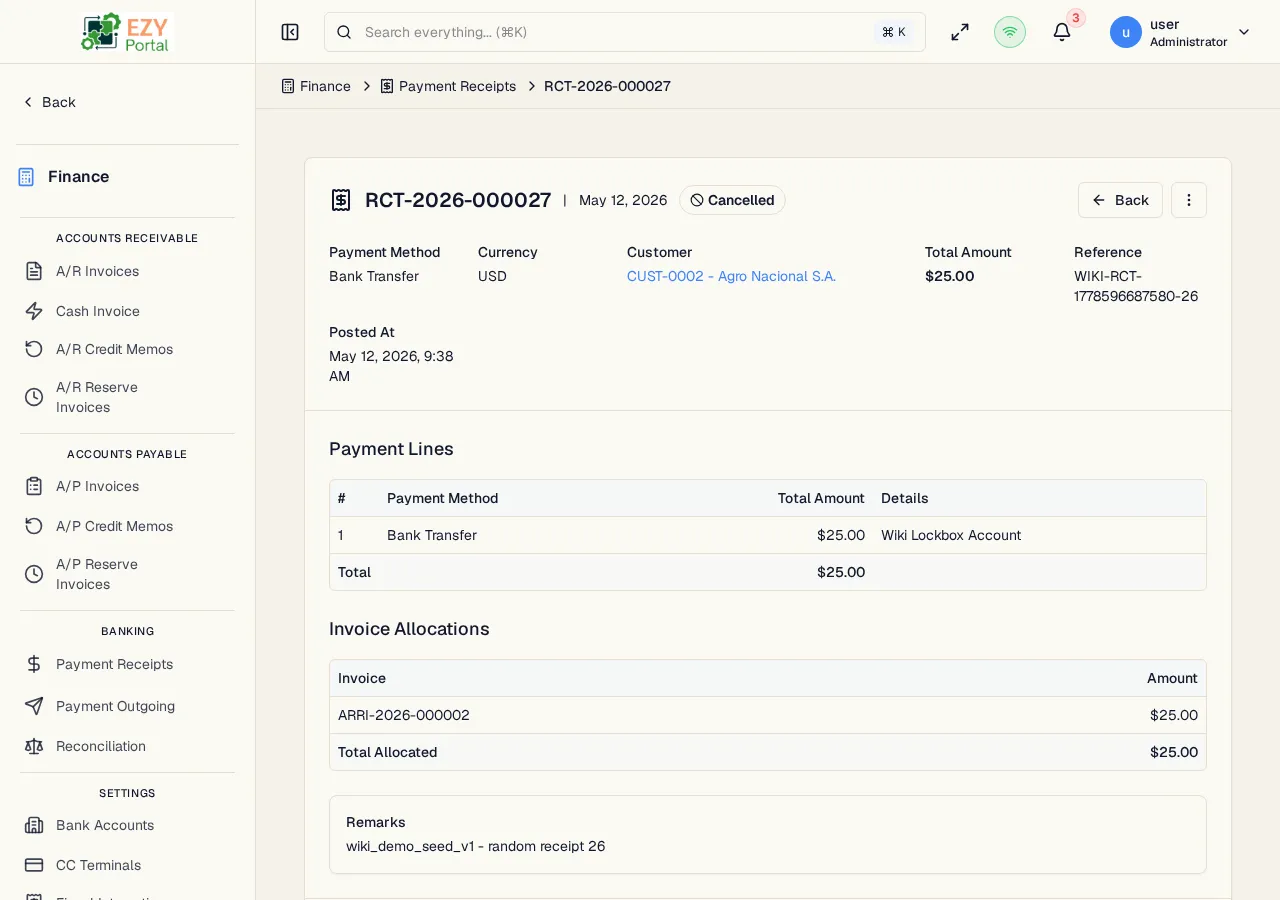
View comprehensive information about a payment receipt including header data, payment lines, invoice allocations, balance summary, and available workflow actions.
Accessing the Page
Section titled “Accessing the Page”From the Payment Receipts list, click any row, or navigate directly to /finance/banking/receipts/:id.
Header / Action Bar
Section titled “Header / Action Bar”| Button | Description | Permission |
|---|---|---|
| Back | Return to the Payment Receipts list | Any |
| History | Open the entity history dialog | Any |
| Edit | Open the Edit Receipt form (Draft only) | canEditReceipt |
| Delete | Delete the receipt (Draft only) | canDeleteReceipt |
| Post | Transition from Draft to Posted | canEditReceipt |
| Cancel | Cancel the receipt | canEditReceipt |
Summary Card
Section titled “Summary Card”| Field | Description |
|---|---|
| Document Number | System-assigned receipt number |
| Status | Current lifecycle status |
| Customer | Business partner name and code |
| Document Date | Receipt date |
| Currency | Transaction currency |
| Reference | External reference |
| Remarks | Free-text notes |
Payment Lines
Section titled “Payment Lines”A table of how the customer paid:
| Column | Description |
|---|---|
| # | Line number |
| Payment Method | Bank Transfer, Cash, Check, or Credit Card |
| Amount | Amount for this line |
| Bank Account | Bank account (for Bank Transfer) |
| CC Terminal | Terminal used (for Credit Card) |
| Check Number | Check number (for Check) |
| CC Last Four | Last four digits (for Credit Card) |
| CC Auth Code | Authorization code (for Credit Card) |
Invoice Allocations
Section titled “Invoice Allocations”A table of invoices this receipt was applied to:
| Column | Description |
|---|---|
| Invoice # | Applied invoice document number |
| Invoice Date | Date of the applied invoice |
| Allocated Amount | Amount applied to this invoice from this receipt |
If the receipt has an unapplied balance, it is shown as the difference between total amount and total allocated. Unapplied receipts can be applied later through the Reconciliation page.
Totals Summary
Section titled “Totals Summary”| Field | Description |
|---|---|
| Total Amount | Sum of all payment lines |
| Balance Applied | On-account balance applied (if any) |
| Total Allocated | Sum of all invoice allocations |
| Unapplied Balance | Total Amount − Total Allocated |
Deleting a Receipt
Section titled “Deleting a Receipt”- Click Delete in the action bar (Draft only)
- Confirm in the dialog
- You are redirected to the receipts list
Only Draft receipts can be deleted.
Business rule notes
Section titled “Business rule notes”- Post transitions the receipt to Posted status. Once posted, payment lines and allocations are committed to the customer’s balance.
- Posting a receipt with invoice allocations reduces the Balance Due on each allocated invoice. If an invoice is fully paid, its status transitions to Paid automatically.
- Cancellation reverses the allocation effects and restores the invoice balances.
Common tasks
Section titled “Common tasks”- Open a receipt from the list.
- Review the payment lines and invoice allocations.
- Click Post to finalize the payment.
Related Pages
Section titled “Related Pages”- Payment Receipts — List all receipts
- Create Receipt — Create a new receipt
- Edit Receipt — Edit a Draft receipt
- Reconciliation — Apply unapplied balances to invoices
- A/R Invoice Detail — The invoices allocated by this receipt