Purchase Orders
The Purchase Orders list page shows all vendor purchase orders in the system. A purchase order (PO) is a formal commitment to a vendor to purchase goods at agreed prices. POs can be created manually, from an Approved Purchase Requisition, or from a Sent RFQ. Confirming a PO commits the order with the vendor and decrements the associated PR open quantities.
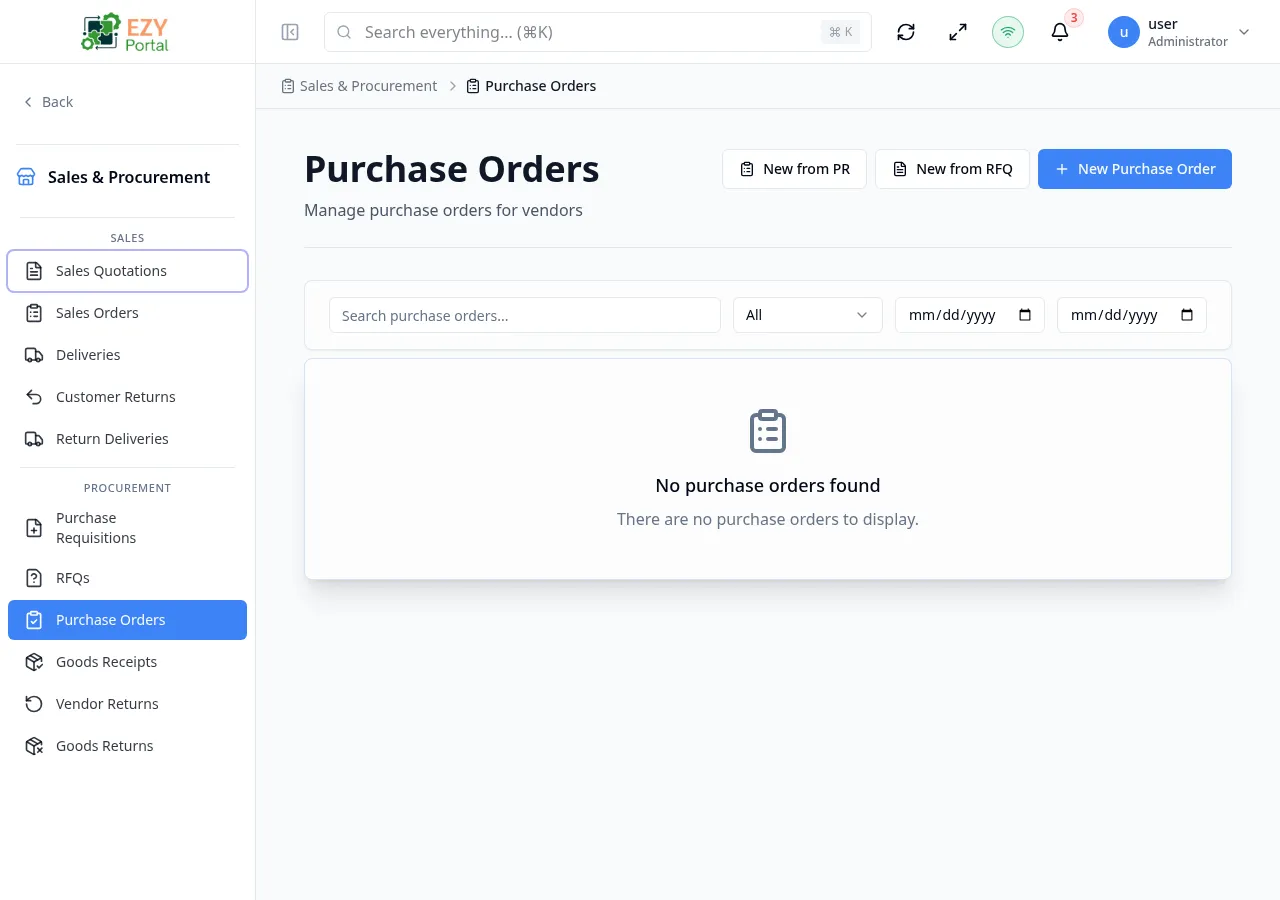
Accessing the Page
Section titled “Accessing the Page”Navigate to Commerce → Procurement → Purchase Orders in the sidebar, or go to /commerce/procurement/purchase-orders.
- This page is currently DEV-gated and only visible in development environments.
- Only Draft POs can be edited and deleted.
- Confirming a PO locks prices and line quantities and commits the order with the vendor. The associated PR open quantities are decremented.
- A Confirmed PO shows a Create Goods Receipt shortcut to receive the ordered goods.
What you can do here
Section titled “What you can do here”- Browse all purchase orders with filtering by status and date range.
- Search by document number or vendor name.
- Create a new PO manually, from a PR, or from an RFQ.
- Confirm, close, or cancel purchase orders.
- Track expected delivery dates and goods receipt progress.
Common tasks
Section titled “Common tasks”- Open Commerce → Procurement → Purchase Orders from the sidebar.
- Filter by Status = Confirmed to find orders awaiting goods receipt.
- Click a row to review the order and create a goods receipt.
List Columns
Section titled “List Columns”| Column | Default Visible | Sortable | Description |
|---|---|---|---|
| Doc # | Yes | Yes | System-generated PO number |
| Vendor | Yes | Yes | Business partner (vendor) name |
| Date | Yes | Yes | Document date |
| Expected Delivery | Yes | Yes | Expected delivery date |
| Status | Yes | Yes | Current workflow status badge |
| Grand Total | Yes | Yes | Total amount including tax |
| Vendor Ref # | No | No | Vendor’s own PO number |
| Source PR | No | No | Source PR number |
| Source RFQ | No | No | Source RFQ number |
| Buyer | No | No | Assigned buyer |
| Currency | No | No | Document currency |
| Reference | No | No | External reference |
| Created | No | Yes | Creation timestamp |
| Updated | No | Yes | Last modification timestamp |
Status Values
Section titled “Status Values”| Status | Description |
|---|---|
| Draft | PO is being prepared; editable and deletable |
| Confirmed | PO confirmed and sent to vendor; prices and quantities locked |
| Closed | PO fulfilled and closed; terminal state |
| Cancelled | PO cancelled; terminal state |
Filtering
Section titled “Filtering”| Filter | Type | Description |
|---|---|---|
| Search | Free text | Searches across document number and vendor name |
| Status | Dropdown | Filter by status; default shows all |
| Date From | Date | Show POs with a document date on or after this date |
| Date To | Date | Show POs with a document date on or before this date |
Sorting
Section titled “Sorting”Click any sortable column header to sort ascending, then descending, then remove. Default sort: Created descending.
Pagination
Section titled “Pagination”Load More pattern — 20 records per load.
Actions
Section titled “Actions”Page Actions
Section titled “Page Actions”| Action | Description | Permission |
|---|---|---|
| New Purchase Order | Navigate to the Create PO form | Write |
Row Actions
Section titled “Row Actions”| Action | Description | Permission |
|---|---|---|
| View | Open the PO detail page | Read |
| Edit | Edit the PO — Draft only | Write |
| Duplicate | Create a copy as a new Draft | Write |
| Confirm | Transition Draft → Confirmed | Write |
| Close | Transition Confirmed → Closed | Write |
| Cancel | Transition Draft or Confirmed → Cancelled (requires reason) | Write |
| Delete | Permanently delete — Draft only | Admin |
Deleting a Purchase Order
Section titled “Deleting a Purchase Order”- Locate the PO — it must have status Draft.
- Click the row actions menu and select Delete.
- A confirmation dialog warns that the deletion is permanent.
- Click Delete to confirm.
Related Pages
Section titled “Related Pages”- Purchase Requisitions — Source PRs for POs
- Requests for Quotation — Source RFQs for POs
- Goods Receipts — Receive goods from confirmed POs